

LinkedIn Comment Likes: How to See, Track and Use Them
A like on your LinkedIn comment is visible in the thread, but LinkedIn gives you no dedicated report for it. You can open the comment's reaction list to see who liked it, review your past comments from your profile's Activity section, and, if the feature has reached your account, read an impression count next to the Like and Reply buttons. For an agency recruiter the real question comes after that: what does a like from a hiring manager mean, and when does it justify a message?
This guide covers where comment likes show up, what you can and cannot measure natively, how to read them as pipeline data, and how to keep a log without turning your commenting into spam.
Key takeaways
- Comment likes are public and shown inline in the thread. LinkedIn does not document a way to filter, sort or export reaction lists, so tracking at scale needs a routine or a tool.
- Comment impressions are rolling out gradually, are non-unique, and show only to the comment's author. They measure exposure, not interest.
- A like is the weakest signal. A reply, a profile view or a connection accept from a target hiring manager is worth far more than a pile of likes from peers.
- Automating comments is against LinkedIn's rules for third-party software, so keep volume human-plausible and review what goes out under your name.
- Log signals per target account, then message only when two or more stack up within a short window.
Table of Contents
- Where comment likes appear and who can see them
- What LinkedIn analytics show for comments
- Likes are the weakest signal. Rank your signals.
- A simple signal log for comment likes
- Turning likes into a conversation: the timing question
- What makes a comment worth liking
- Managing comment volume without sounding like a bot
- A 15-minute daily routine for recruiters
- Track and manage comments with Kynzo
- FAQ
- Sources
Where comment likes appear and who can see them
When someone likes your comment, the like attaches to the comment inside the post's thread. People viewing that post see the count, and you can tap it to open the list of people who reacted. Comment likes are mainly seen inline by people reading the same post. They are less likely than post reactions to be surfaced separately in connections' feeds, according to user discussion on Quora . That matters for you in two ways.
First, a missing notification does not prove nobody liked your comment. Check the thread itself rather than relying on alerts.
Second, the interaction is public. Likes and comments have no private mode, so the post's author and the liker's network can see what happens, as one security-focused guide to LinkedIn activity privacy notes . Every like you give a hiring manager's comment is also visible to them. That is useful: it is a low-pressure way to appear on their radar.

How to see your own past comments and reactions
You can review what you have done from your profile: open the Activity section, choose Show all activity, then filter by Comments or Reactions. A reaction guide from Jeluvi describes this path. It is the quickest way to audit which of your comments are still earning engagement weeks later, since a comment on a strong post can keep collecting likes long after you wrote it.
What LinkedIn analytics show for comments
Natively, very little. There is no comment dashboard, and the same Jeluvi guide notes that LinkedIn does not document a way to filter, sort or export a post's reaction list.
The newest addition is the comment impression count. Social Media Today reported that LinkedIn is rolling it out to some users: a number next to the comment actions showing how many times the comment was viewed. Three details change how you should read it:
- *It is non-unique. If the same member views your comment twice, that counts as two impressions.
- *It includes your own views. Rechecking your comment inflates the number.
- *It is visible only to the author (or page admins for company comments), according to Lindsey Gamble's write-up of the rollout .
So impressions tell you a comment sat high enough in the thread to be seen. They do not tell you who saw it or whether a hiring manager cared.
Likes are the weakest signal. Rank your signals.
Most recruiters count likes because likes are easy to count. That is the trap. A like costs the other person one tap. It confirms the comment was readable, nothing more. Treat engagement as a ladder:
| Signal | Effort for the other person | What it suggests | Typical next move | |---|---|---|---| | Like on your comment (peer or stranger) | Very low | Comment was visible and agreeable | Nothing | | Like on your comment from the target hiring manager | Low | They saw your name, no objection | Keep commenting; log it | | Reply to your comment | Medium | They want a conversation | Reply back with substance within a day | | Profile view after your comment | Medium | They are checking who you are | Make sure your headline states what you recruit | | Connection request accepted | Medium-high | They are open to a relationship | Send a short, non-pitch note | | Inbound message or inquiry | High | They have a need or a question | Move to a call |
The rule of thumb we use: one like is noise, but a like plus a profile view plus a reply from the same person inside two weeks is a warm opening. Our breakdown of LinkedIn engagement signals and engagement metrics goes deeper on each rung.
Why a hiring manager's like differs from a peer's like
A comment aimed at a hiring manager's post reaches two audiences: the author and other recruiters in the thread. Likes from other recruiters mean your take was sharp, which helps visibility, but they do not move a search forward. Filter mentally by who the liker is. Open the reaction list, scan for titles that match your target accounts (VP Engineering, Head of Talent, Managing Partner), and ignore the rest. That single habit separates relationship-building from vanity metrics.
A simple signal log for comment likes
Because LinkedIn offers no export, keep your own. A spreadsheet or your CRM works if you are disciplined. Record these fields per target account:
- *Date and post: which post you commented on and the link.
- *Your comment: the first line, so you remember the angle.
- *Who reacted: name and title, only if they match a target.
- *Signal type: like, reply, profile view, connection accept, inquiry.
- *Stage: cold, warming, warm, in conversation.
- *Next action and date.
Review it twice a week. A target who has liked two comments and viewed your profile moves to "warm." A target with no response after six or eight genuine comments across a month stays in a slower rotation instead of getting a pitch.
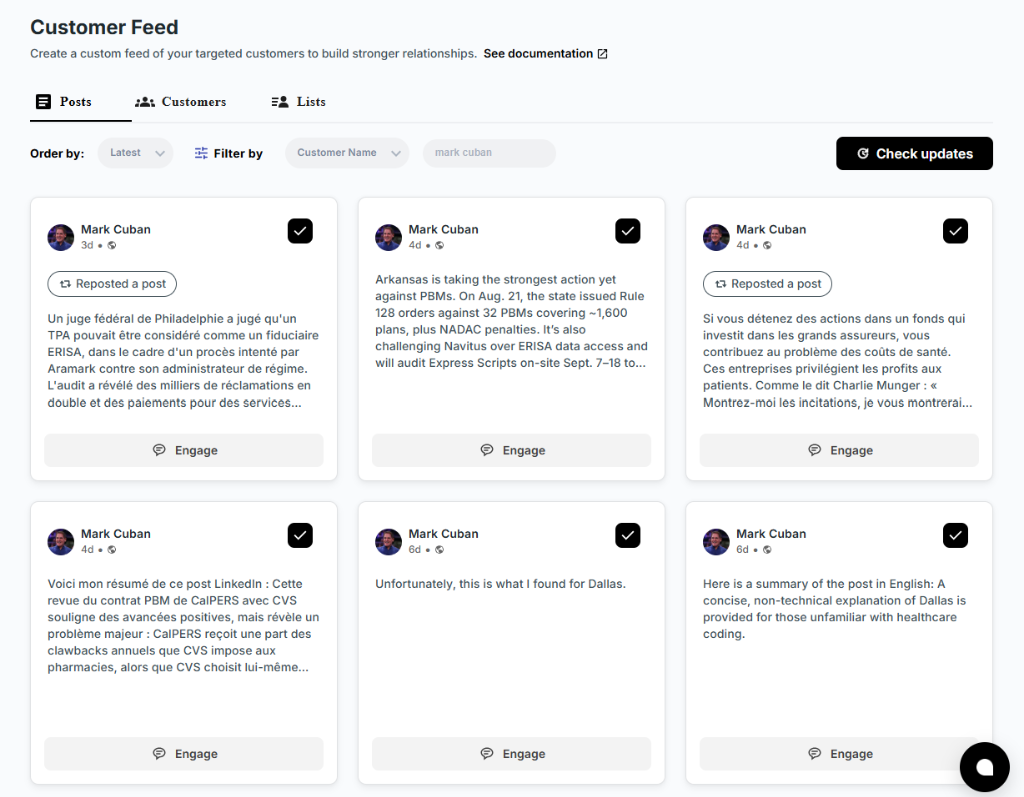
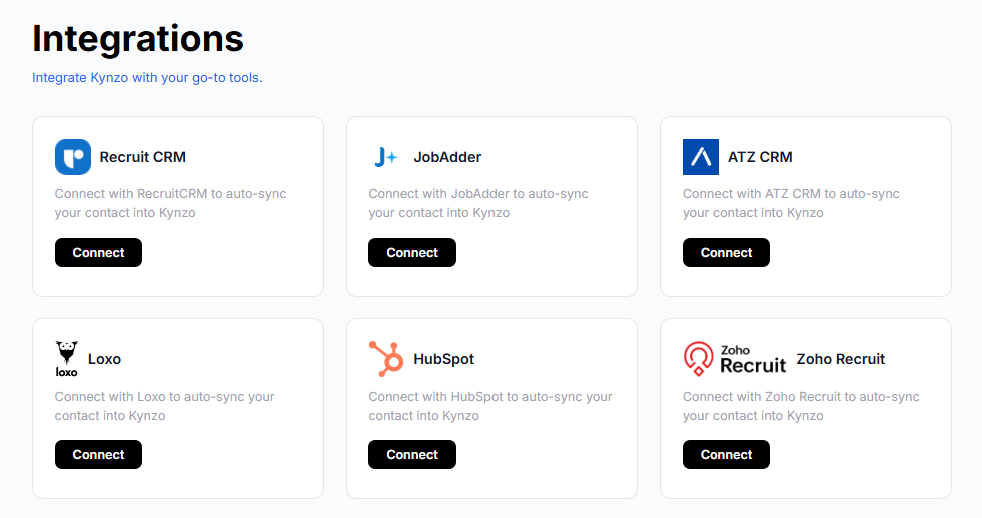
Tools exist to remove the manual work. Kynzo's Customer Feed collects posts from the hiring managers and company accounts you care about, so you are not hunting through LinkedIn's general feed, and it tracks replies, comment likes, profile views, connection accepts and inquiries in one place. You can sync target accounts from Recruit CRM, JobAdder, Zoho Recruit, HubSpot, Crelate or Loxo, or save profiles and posts by hand. More on that setup is in our guide to monitoring LinkedIn activity .
Turning likes into a conversation: the timing question
When is a hiring manager open to talking? No analytics page answers that directly, so you infer it from patterns:
- *They post about hiring pain. A post about a stalled search, a new office or a funding round is context. Comment first, message later.
- *They engage twice or more. Repeated interaction with your comments inside a couple of weeks suggests recognition.
- *They visit your profile. This is a stronger signal than a like, because it takes deliberate action.
- *They accept your connection after you have commented. Commenting before you connect means the request arrives with context.
When two signals line up, send a short message that references the thread, not a pitch. Something like: "Your point about time-to-productive hires in the thread stuck with me. We placed two infrastructure leads last quarter, so happy to share what we saw if useful." Only say what is true for your desk. Compare that with a cold InMail that opens with a stranger's service list, and you can see why warm outreach converts better and annoys fewer people.
If a target hires in a specialty you do not know well, learn the vocabulary before you comment. Reading engineering hiring case studies shows how teams describe staffing needs, which helps you write comments that sound informed instead of generic.
What makes a comment worth liking
You control the comment, so improve what earns the like. Our working framework is *A-A-O: *Acknowledge a specific point in the post, *Add one concrete observation from your own market, then *Open the door with a light question. Three sentences is enough.
*Weak: "Great post, thanks for sharing!"
*Stronger: "The point about offer-stage drop-off matches what we see in senior data roles: candidates with two offers decide in under 48 hours. Are you shortening the final round to compete?"
The second version gives other readers something to like, gives the author something to answer, and shows you work in their space. Details and more examples are in our pieces on LinkedIn comment examples and comment strategy . If you want a starting draft for a specific post, the free LinkedIn comment generator produces one you can edit.
A few habits that protect the quality of your comments:
- Comment early, within the first hours of a post, when your comment sits near the top.
- Reply to people who respond to you. Replies keep a thread alive and give the hiring manager a second touchpoint.
- Skip comments that only repeat the post.
- Never pitch in the thread. The thread is for credibility, the DM is for business.
Managing comment volume without sounding like a bot
Once you track ten, thirty or fifty target accounts, commenting by hand becomes a time sink, and that is where recruiters reach for automation. Be clear-eyed about the rules. LinkedIn states in its help center that it does not allow third-party software or browser extensions that automate activity on its website, and that restricted accounts must disable the offending tool. Industry commentary adds that tools tend to survive only when actions look human-plausible on your own account, and that detection keeps changing, so no method is guaranteed safe.
What that means in practice:
- *Keep the human in the loop. Draft with AI, then read every comment before it posts. If a comment would embarrass you in front of the hiring manager, it should not go out.
- *Cap daily volume well below what a busy recruiter would do by hand.
- *Spread activity across active hours and add natural gaps between comments.
- *Vary tone and length. Identical rhythms are the first thing readers and filters notice.
- *Stop when an account is restricted. Do not push through warnings.
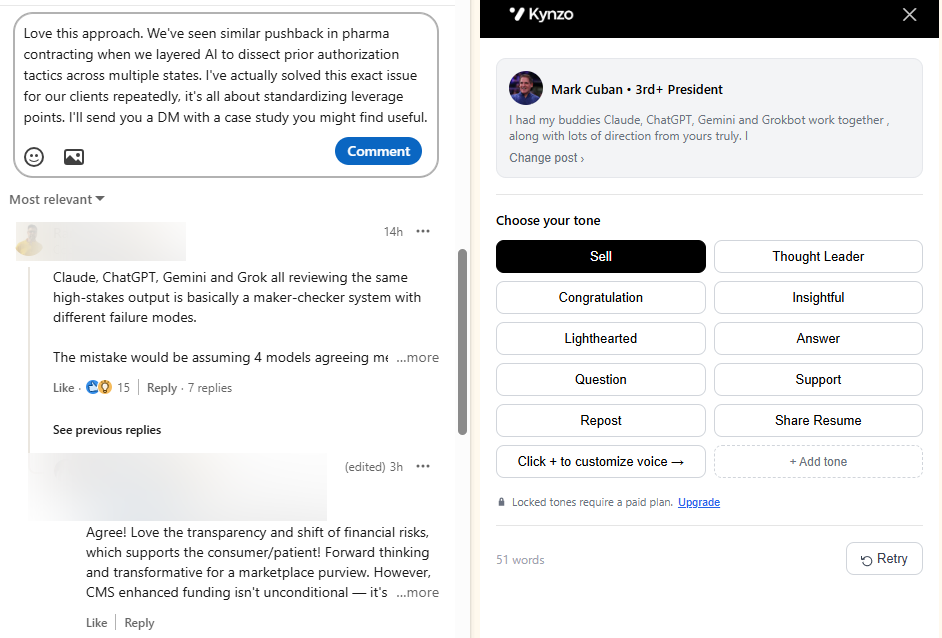
Kynzo's AI Agent is built around these controls: it drafts context-aware comments in your own voice, with selectable tones, active hours, daily caps and randomized delays, and you choose whether it drafts for your review or publishes. Our posts on LinkedIn rate limits , comment automation and AI commenting explain how we think about safe pacing. Whatever tool you pick, the policy risk is yours to weigh, so start conservatively and review your account's behavior.
A 15-minute daily routine for recruiters
Time-boxed routines beat sporadic bursts. Here is a schedule built for an agency recruiter with a billing desk:
- *Minutes 0-5: scan. Open your curated list of target hiring managers and company accounts, not the general feed. Pick the three most relevant new posts.
- *Minutes 5-10: comment. Write or edit two or three A-A-O comments. Like one or two comments from other decision makers in the same thread.
- *Minutes 10-13: reply and check. Answer anyone who responded to yesterday's comments. Note any likes from target titles in your log.
- *Minutes 13-15: decide. Flag any account with two or more signals for outreach this week.
Once a week, spend 20 minutes reviewing your log: which accounts are warming, which comments drew replies rather than just likes, and which targets should be swapped out.
Track and manage comments with Kynzo
If you are monitoring more than a handful of hiring managers, a manual log gets heavy. Kynzo is a Chrome extension with a dedicated Customer Feed, CRM sync, an AI Agent that works in your voice, and signal tracking for replies, comment likes, profile views, connection accepts and inquiries, so you see when a target is ready for warm outreach. Installation is free, and paid plans are STARTER at $12.90 per month, PRO at $30 per month and ELITE at $50 per month . You can also explore the Kynzo platform first.

It is built for agency recruiters, recruitment agency owners and executive search consultants who want warmer discovery calls without mass messaging or cold InMail.
FAQ
Can I see who liked my LinkedIn comment?
Yes. Tap the like count on your comment to open the list of people who reacted. Comment likes are mainly visible inside the thread, so you may not get a separate notification for each one. Check the post itself when you want a full picture.
Can I see all the comments I have liked or written?
Yes. Go to your profile, open the Activity section, select Show all activity, and filter by Comments or Reactions. This shows your own history, not who engaged with it, so open individual comments to see their likes.
Does LinkedIn show comment analytics?
Partly. LinkedIn is rolling out impression counts on comments, and not every account has them yet. They count every view, including repeats and your own, and only you can see them. There is still no documented way to export or sort reaction lists, so recruiters keep their own log.
Are comment likes a good sign that a hiring manager wants to talk?
Only in combination. A single like shows they noticed you. A like together with a reply, a profile view or an accepted connection request within a couple of weeks is a much stronger reason to start a warm conversation.
Can I like or comment privately on LinkedIn?
No. Likes and comments are public, and the author of the post and the wider network can see them. Write every comment as if the hiring manager and your client will read it.
Sources
- LinkedIn Help: Automated activity on LinkedIn
- Social Media Today: LinkedIn Rolls Out Comment Impression Counts
- Lindsey Gamble: LinkedIn analytics for comments you leave on posts
- Jeluvi: LinkedIn Likes, what each reaction does and who sees it
- ConnectSafely: LinkedIn activity privacy guide
- Quora: Are comment likes notified to connections?