

How to Connect LinkedIn to Loxo: 3 Methods That Work
You can connect LinkedIn to Loxo, but not with a single switch. Loxo's Chrome extension parses profile data into your Loxo fields. Message history needs the Loxo API and a middleware tool. Client-side relationship signals, such as what a hiring manager posts and who replies to your comments, need a separate engagement layer that feeds your Loxo account list.
Below we walk through each method, what it does and does not do, and how to choose based on whether you source candidates or build client relationships.
Key takeaways
- *The Chrome extension is the core connection. It captures LinkedIn profiles into Loxo records, but it is a capture tool, not a set-and-forget automation.
- *LinkedIn messages do not sync natively. You need an API key from Loxo Settings and a connector, plus a dedicated activity type so messages file correctly.
- *Loxo Connect is enrichment, not a LinkedIn link. It supplies contact details, so you can reach people outside InMail.
- *Business development is the gap. A data bridge will not tell you when a hiring manager is warm. That is where a LinkedIn engagement layer like Kynzo fits beside Loxo.
Table of Contents
- What "connecting LinkedIn to Loxo" actually means
- Method 1: The Loxo Chrome extension
- Method 2: The Loxo API for message sync
- Method 3: Loxo Connect for contact data
- Why a data bridge is not a relationship strategy
- Method 4: Add Kynzo for client-side engagement
- Pricing and getting started with Kynzo
- Choosing your setup
- FAQ
- Sources
What "connecting LinkedIn to Loxo" actually means
Recruiters use the phrase for three different jobs, and mixing them up is the most common reason setups disappoint:
| Job | What you want | Typical route | |---|---|---| | Capture | Profiles from LinkedIn into Loxo as people or contacts | Loxo Chrome extension | | Sync | LinkedIn conversations logged on the Loxo record | Loxo API plus a connector | | Engage | Know when a target client is active and warm | Engagement layer feeding from your Loxo accounts |
Loxo states that it has no affiliation with LinkedIn, and a review of Loxo for UK agencies notes that this makes the extension dependent on Loxo keeping pace with changes to LinkedIn's page structure. In practice, expect the occasional hiccup after a LinkedIn update, and spot-check what lands in your records.
One Reddit thread among agency recruiters puts the limit plainly: Loxo does not automate LinkedIn connection requests . You can send LinkedIn messages or InMails from its outreach section, but that is a different thing from automated connection activity.
Method 1: The Loxo Chrome extension
This is the fastest route and the one most teams start with. According to Loxo's help center, the extension parses information directly into data fields in your account and works on social and sourcing sites such as LinkedIn, GitHub, WellFound and XING.
Setup in five steps
- Install the extension from the Chrome Web Store, following Loxo's install guide.
- Sign in to your Loxo account in the extension.
- Log in to LinkedIn in the same browser profile.
- Open a candidate or hiring manager profile.
- Open the extension, review the parsed fields and add the person to Loxo or to a job pipeline.
What to check after every capture
Treat the extension as a manual enrichment step, not as unattended sync. Read the parsed title, company and location before saving. Practitioners quoted in the same UK review warn that leaning on the extension alone for high-volume relationship work tends to leave you with fragmented data.

Personalizing outreach from the profile
Loxo's help center explains that you can add a person to an outreach campaign and keep full control of the message without leaving their profile. One trap: customization can fail for someone sitting inside an A/B test in the campaign. Keep people you plan to personalize in a standard campaign, and reserve A/B variants for volume sequences.
Method 2: The Loxo API for message sync
Loxo does not pull LinkedIn message threads on its own. If you want conversations visible on a person's record, the route is the Loxo API plus a connector. The Talentalk guide to syncing LinkedIn messages into Loxo shows the pattern, and it applies to any middleware or custom webhook you might build.
The general sequence
- *Create an activity type. In Loxo, go to Settings, then Workflow, and create a trigger for a dedicated activity type such as "LinkedIn Messages". This tells the connector where to file each message.
- *Generate an API key. In Settings, open API Keys and click Add. Copy the token immediately and store it in a password manager. 100Hires' developer guide notes the key is created by an account admin and that you also need your agency domain.
- *Paste both into the connector. Enter the token and the activity type name in the tool's Loxo settings.
- *Test with one conversation. Confirm it appears on the right person, under the right activity type, before you switch on anything broader.
Who should do this
The API route suits agencies where multiple recruiters share candidate relationships and the team needs an audit trail. It is overkill for a solo recruiter. It also adds a credential to protect, so limit who can generate keys.
Data protection comes with the territory
Syncing conversations means storing more personal data. Commentary on Loxo for UK teams stresses that the agency still owns its data compliance posture, including UK GDPR, whatever the software automates. Yena's comparison adds that Loxo's architecture is US-centric, so European agencies should check data residency and Standard Contractual Clauses before integrating. US teams recruiting in the EU or UK should ask the same questions. For a wider look at the privacy side of LinkedIn prospecting, see this guide to compliant LinkedIn lead generation .
Method 3: Loxo Connect for contact data
Loxo Connect is often mistaken for a LinkedIn connection. It is not. Loxo describes Connect as a way to verify personal and work contact details in real time, and claims coverage of personal emails and phone numbers for 75% of the world's professionals. That is the vendor's own claim, so test it on a sample of your own niche before relying on it.
The practical value is reach: when a candidate ignores InMail, a verified email or number gives you another channel. For client development it is less useful. A hiring manager you have never spoken to does not want a cold call from a number you found, and this is where warm engagement beats data volume.

Why a data bridge is not a relationship strategy
Analyst commentary in the UK review above makes a point worth repeating: the connect function is a technical bridge, not a relationship tool. You can have every profile parsed perfectly and still have an empty pipeline of client conversations.
Agency business development has a different rhythm from candidate sourcing:
- Hiring managers rarely respond to a cold InMail from a recruiter they do not know.
- They do post, comment and react on LinkedIn, often daily.
- The recruiter who has been visibly useful in their comments for three weeks is a different prospect from a stranger.
That is the layer Loxo's capture tools do not cover, and it is why many agencies pair Loxo with a LinkedIn engagement platform.
Method 4: Add Kynzo for client-side engagement
Kynzo is a LinkedIn-focused engagement platform built for agency recruiters and search consultants. It does not replace Loxo. It uses the accounts you already track in your CRM, Loxo included, and turns them into a daily workflow around the people who hire.
Here is how the pieces fit with a Loxo-based agency:
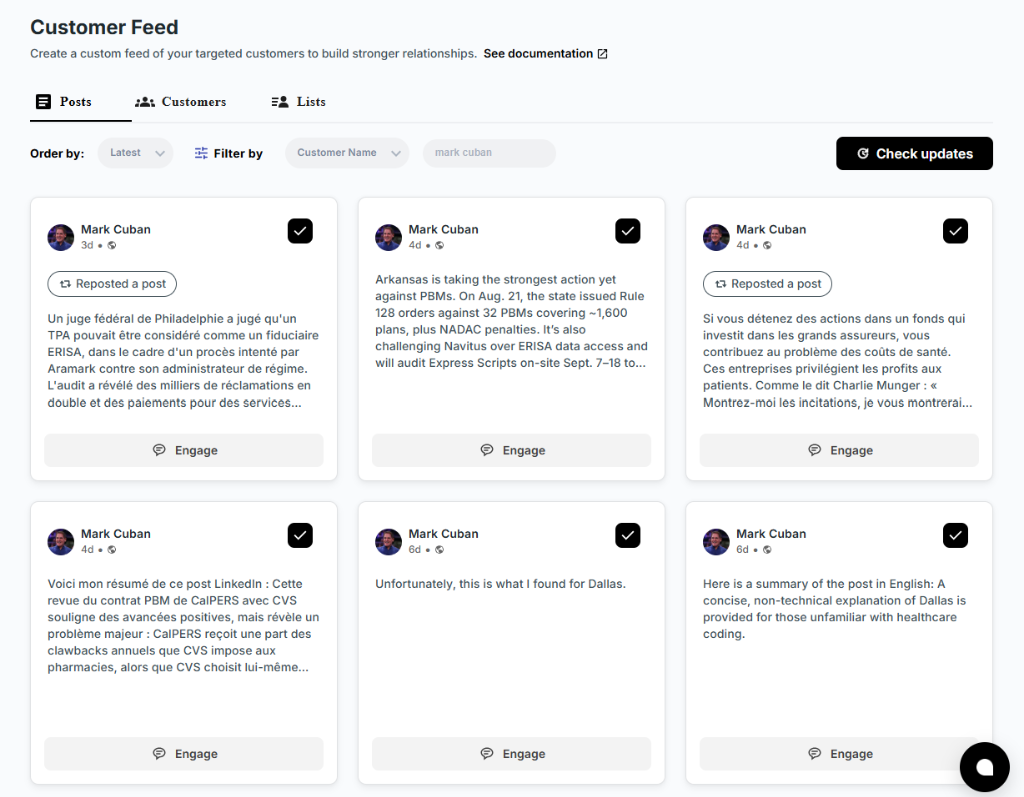
| Need | Loxo | Kynzo | |---|---|---| | Parse a profile into a record | Chrome extension | Save profiles or posts manually | | Keep your target accounts in one list | Companies and contacts in the CRM | Synchronizes accounts from Loxo and other CRMs | | See what hiring managers are posting | Not its job | Dedicated Customer Feed, separate from LinkedIn's general feed | | Comment at scale without sounding robotic | Not its job | AI Agent drafts or publishes comments in your voice | | Know when to pick up the phone | Activity you log yourself | Tracks replies, comment likes, profile views, connection accepts and inquiries |
How the workflow runs
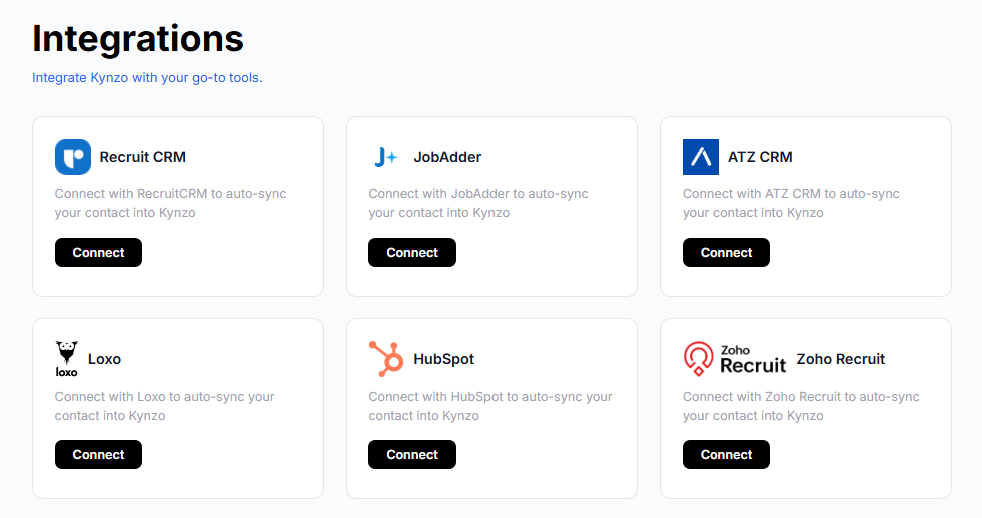
- Your target hiring managers and company accounts sync from Loxo into Kynzo, or you save them by hand from LinkedIn.
- Their posts appear in a curated Customer Feed, so you are not hunting through a noisy timeline.
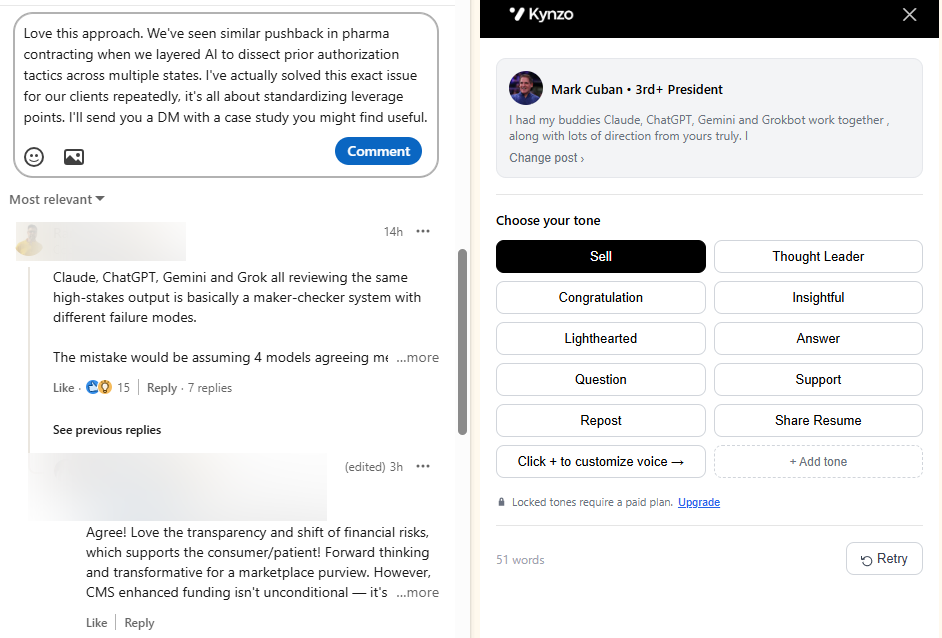
- The AI Agent drafts a context-aware comment in your voice. You approve it, or let it publish within the limits you set.
- Pacing controls keep activity human: active hours, daily caps and randomized delays.
- Engagement signals show when a prospect has replied, liked your comment, viewed your profile or accepted a connection. That is your cue for warm outreach.
Pacing matters because LinkedIn watches automated behavior. Our guide to LinkedIn rate limits explains how to set caps sensibly, and the overview of LinkedIn comment automation covers what to automate and what to keep manual.
A sample week
An agency owner with 40 target hiring managers synced from Loxo might run it like this:
- *Monday to Friday, 20 minutes each morning: review the Customer Feed, approve or edit the drafted comments, and add a hand-written comment on the two or three posts that matter most.
- *Friday: scan the engagement signals. Anyone who replied to a comment, viewed your profile and accepted a connection in the same week is ready for a short, specific message.
- *Afterward: log the conversation in Loxo as usual, so your CRM remains the system of record.
No single comment wins a client. A steady, relevant presence, followed by a message that references something the person actually said, does the work that mass messaging cannot.
Where Kynzo is not the answer
If you only need candidate sourcing and profile capture, the Loxo extension covers it and you do not need us. Kynzo earns its place when business development on LinkedIn is a real part of your revenue. For a broader view of CRM connections, read our guide on connecting LinkedIn to your CRM , or see how the same idea works for Zoho Recruit users .
Pricing and getting started with Kynzo
Installing the Chrome extension is free, and the free comment generator lets you test the commenting style before committing. Paid plans are published on the Kynzo pricing page :
| Plan | Price | |---|---| | STARTER | 12.90 USD per month | | PRO | 30 USD per month | | ELITE | 50 USD per month |
A practical start: sync your top 25 accounts from Loxo, run the AI Agent in draft mode for two weeks, and compare how many hiring managers engage with you against your last month of cold outreach.
Choosing your setup
Pick by the problem you are solving, not by the feature list:
- *You mostly source candidates: use the Loxo Chrome extension, and add Loxo Connect if InMail response is your bottleneck.
- *You need conversation history on records: set up the API key, an activity type and a connector, after a data-protection check.
- *You win clients through LinkedIn: keep Loxo as your record, and add an engagement layer so outreach starts warm.
- *You want follow-up that does not sound scripted: study how trigger-based lead follow-up is structured, then apply the principle to your own post-comment messages.
One rule from the practitioner advice above holds for all of them: list the five workflows your team performs every week, and judge any setup against those five only.
FAQ
Does Loxo integrate directly with LinkedIn?
Not as a native two-way connection. Loxo offers a Chrome extension that captures LinkedIn profile data into your records, and outreach options for LinkedIn messages and InMail. Loxo also states it has no affiliation with LinkedIn.
Can Loxo sync my LinkedIn messages?
Not natively. You generate an API key under Settings, create a dedicated activity type in Workflow settings, and use a connector such as Talentalk or your own webhook to file messages on the person's record. Test with a single conversation first.
Can Loxo automate LinkedIn connection requests?
Recruiters in agency communities report that it does not. Connection and comment automation come from separate tools, which should include pacing controls such as daily caps and randomized delays to keep activity human.
Can Kynzo work with Loxo?
Yes. Kynzo can synchronize accounts from recruiting and CRM systems including Loxo, so the hiring managers and companies you already track appear in your Customer Feed. You can also save profiles and posts manually if you prefer.
Sources
- Install the Loxo Chrome Extension, Loxo Help Center
- Custom Personalization in Outreach Campaigns, Loxo Help Center
- Loxo Connect product page
- Synchronise your LinkedIn messages in Loxo, Talentalk
- Loxo API developer guide, 100Hires
- Loxo Review UK 2026
- Tezi vs Yena vs Loxo, Yena
- Loxo for LinkedIn automation, r/RecruitmentAgencies