

How to Connect LinkedIn to Your CRM: 3 Methods That Work
You can connect LinkedIn to a CRM in three ways: a native sync through Sales Navigator, LinkedIn Recruiter's CRM Connect, or a browser extension that sits on top of LinkedIn. Which one fits depends on your plan, your CRM and what you want to happen after the connection. For agency recruiters developing client relationships, the sync itself is the easy part. The harder part is turning synced accounts into warm conversations with hiring managers.
TL;DR
- *Native sync (Sales Navigator and your CRM) needs an Advanced Plus plan, admin rights in the CRM and a supported CRM edition. It mostly logs activity metadata, not conversation content.
- *LinkedIn Recruiter CRM Connect is the route for candidate data, and only for supported systems.
- *A browser extension covers CRMs the native routes skip and lets you work from your target-account list.
- A sync only moves records. Pipeline results come from what you do with those records: watching target accounts and engaging before you pitch.
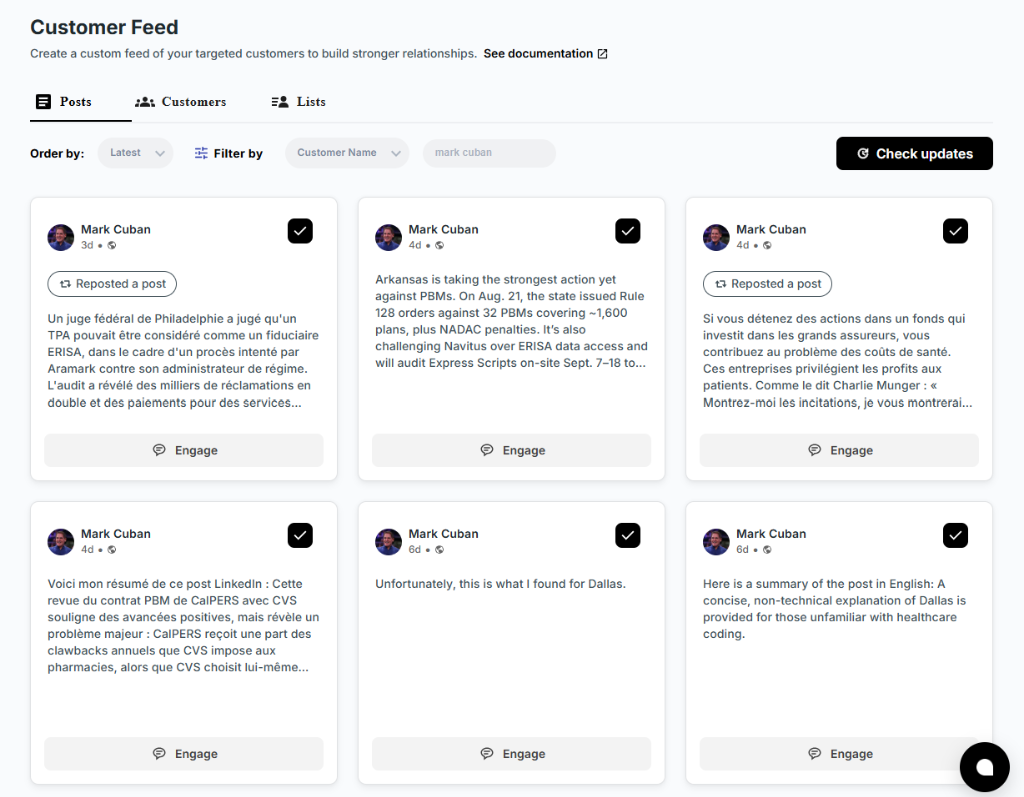
- We built Kynzo to do exactly that for agency recruiters. It syncs target accounts from your CRM and turns their LinkedIn activity into a focused feed.
Table of Contents
- What "connecting LinkedIn to a CRM" actually means
- Method 1: Native Sales Navigator CRM sync
- Method 2: LinkedIn Recruiter and CRM Connect
- Method 3: A browser extension on top of LinkedIn
- Why a sync alone does not fill your pipeline
- Our view: connect the CRM to the conversation, not just the contact
- A practical setup for an agency desk
- Common mistakes when linking LinkedIn and a CRM
- Try the workflow with Kynzo
- FAQ
- Sources
What "connecting LinkedIn to a CRM" actually means
People use the phrase for three different jobs, and mixing them up is why setups disappoint.
- *Pushing profiles into the CRM. You find a person on LinkedIn and save them as a contact or candidate.
- *Pulling CRM context into LinkedIn. You see lead status, deal stage or account history while browsing a profile.
- *Logging activity back. Messages, InMails and accepted connection requests show up on the CRM record.
No single tool does all three equally well. Research on syncing LinkedIn with a CRM shows the two main routes: the native Sales Navigator integration, which requires an Advanced Plus plan, and third-party browser extensions. Native integrations are often limited to activity metadata, so tools are frequently needed for deeper conversation data or for CRMs without native support.
Before you pick a method, decide which of the three jobs matters most to your desk. A recruiter sourcing candidates needs job 1. A business development lead chasing hiring managers needs jobs 2 and 3, plus a way to act on them.
Method 1: Native Sales Navigator CRM sync
This is the route most CRM vendors document, and it is the first thing Google surfaces for this query.
What you need
Using HubSpot as the example, HubSpot's setup guide says you must be a Super Admin or have App Marketplace access, hold a Sales Hub Professional or Enterprise seat, and have a Sales Navigator Advanced Plus plan. One HubSpot account can sync with only one Sales Navigator environment at a time.
Other CRMs follow a similar pattern with their own editions and admin requirements. Microsoft documents how to integrate Sales Navigator with Dynamics 365 Sales , and Zoho has its own Sales Navigator extension for Zoho CRM . Always read the vendor page for your edition before you buy a seat.
The general steps
- Confirm the plan on each side (Sales Navigator Advanced Plus, and the right CRM tier).
- Sign in to Sales Navigator as an admin and open the CRM settings.
- Choose your CRM and authorize the connection.
- Decide which fields map to which CRM properties.
- Test with a small batch before switching on live sync.
Step 4 deserves care. HubSpot notes that when a field type does not match the CRM property type, for example text against a dropdown, the sync generates an error . Verify field settings before you go live.
What it does not do
Many recruiters assume the native integration logs full conversations. In most cases it logs activity metadata such as an InMail sent or a connection accepted, not the message body . That is fine for reporting touches. It is not enough if you want your team to read what a hiring manager actually said.
Method 2: LinkedIn Recruiter and CRM Connect
If your firm already pays for LinkedIn Recruiter, CRM Connect is the official path for candidate-side data. According to LinkedIn's CRM Connect overview , it synchronizes candidate information between your candidate relationship management system and LinkedIn Recruiter, so Recruiter users can export member profiles to the external CRM and view them there.
Not every system is supported. LinkedIn publishes a table of supported ATS and CRM partners showing which features each one has, and the features differ by partner. Check that table first. A system can support Recruiter System Connect but not CRM Connect.
The practical advice from LinkedIn's model is to map LinkedIn member profiles to CRM records early. If you wait, the same person lives in two places with two histories, and mutual connections or signals get lost in manual silos.
CRM Connect is built around candidates. If your growth depends on *clients, meaning hiring managers and talent leaders at target companies, it solves only half of your problem.

Method 3: A browser extension on top of LinkedIn
Extensions fill the gaps. They work when your CRM has no native connector, when you do not hold Advanced Plus, or when you want a workflow the native tools do not offer.
They are not all alike. Before you install one, check four things:
| Question | Why it matters | |---|---| | Does it use official APIs, or does it scrape pages? | Scraping carries significant account risk and can put you on the wrong side of LinkedIn's terms. | | Which CRMs does it sync with? | A tool that lists your CRM by name beats one that promises "any CRM." | | Does the sync run one way or both ways? | Two-way sync keeps status changes from drifting apart. | | What happens when the connection breaks? | Password changes or token expiry are common causes. Re-authenticating in the extension settings usually restores the link without losing records already synced. |
That last row is worth knowing before a client call, not after.
Why a sync alone does not fill your pipeline
Automation can save up to 5 hours a week of manual data entry. That is real time. But time saved on data entry is not pipeline.
The biggest mistake we see is treating the integration as set-and-forget. Industry experts quoted in the same research say successful recruiters treat it as a pipeline management tool, using CRM-synced activity to trigger warm outreach instead of leaning on a noisy general feed.
Think about what a synced contact list gives you: a list. Your hiring manager still posts, comments, gets promoted and announces a new office, and none of that reaches you unless you go looking. Meanwhile the usual answers are weak: a cold InMail to a person who has never heard of you, or a mass message that the hiring manager has received ten times that week.
The better sequence is simple:
- *Sync the accounts you want as clients.
- *Watch what those people post.
- *Engage with useful comments, so your name is familiar.
- *Read the signals (replies, profile views, connection accepts).
- *Reach out when the signals say the person is warm.
Methods 1 to 3 handle step 1. Steps 2 to 5 are where agency recruiters win or lose high-fee relationships.
Our view: connect the CRM to the conversation, not just the contact
We built Kynzo for agency recruiters, recruitment agency owners and search consultants, and we start from one belief: the CRM should tell you who matters, and LinkedIn should be where you show up for them.
Here is how we think about it.
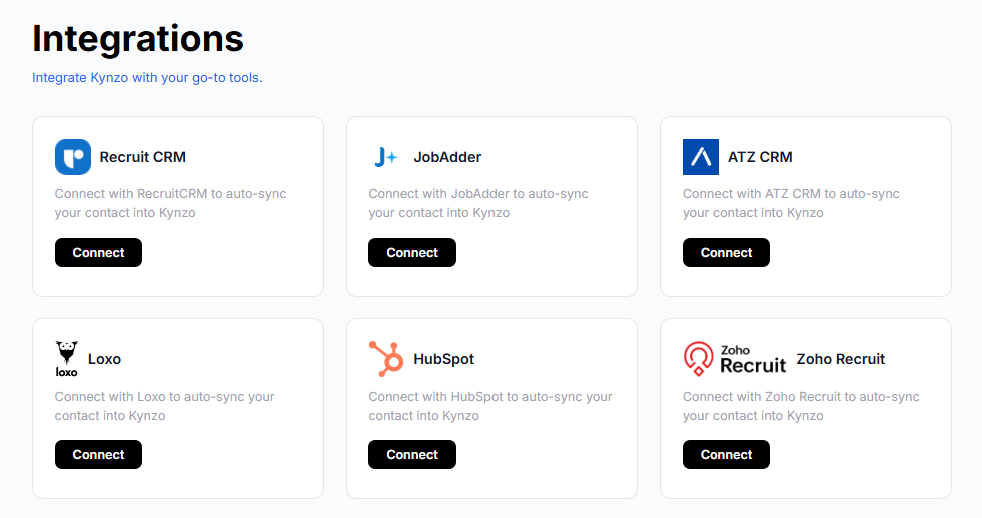
*Your CRM already knows your target accounts. The hiring managers and company accounts you care about live in Recruit CRM, JobAdder, Zoho Recruit, HubSpot, Crelate or Loxo. Re-typing them into a LinkedIn list is wasted effort. That is why Kynzo synchronizes accounts from those systems, and why you can also save profiles or posts manually when something catches your eye.
*LinkedIn's general feed is the wrong place to do business development. It is built around what the algorithm wants to show you. A dedicated feed of only your target hiring managers and company accounts means you see their posts and activity without scrolling past everyone else's.
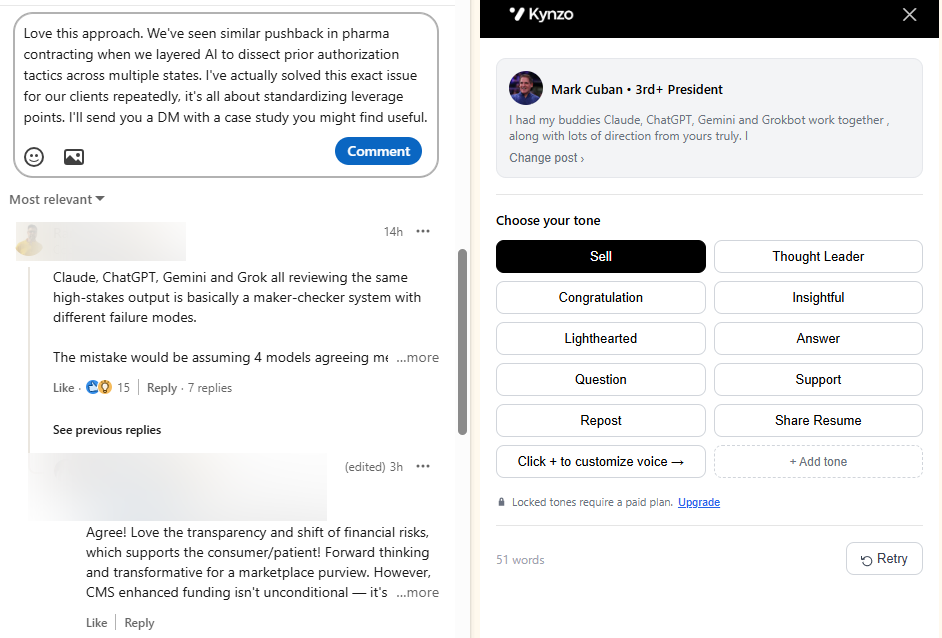
*Comments beat cold messages for starting a conversation. A thoughtful comment on a post a hiring manager wrote is a public, low-pressure introduction. It is also the opposite of the spam that makes recruiters easy to ignore. Our AI Agent drafts or publishes context-aware comments in your own voice, with tone options, active hours, daily caps and randomized delays, so the pacing looks like a person, not a bot.

*Signals tell you when to begin. We track replies, comment likes, profile views, connection accepts and inquiries. Think of it as a signal log for each account. When a hiring manager replies to your comment and then views your profile, you have a reason to send a warm message. Before that, you have a guess.
We are not claiming this replaces your CRM or Sales Navigator. It sits between them and the conversation. For a deeper look at how commenting fits a recruiting business development plan, read our guide to AI commenting on LinkedIn and our agency recruitment business development strategies .
*— Jenny
A practical setup for an agency desk
Here is a routine you can run this week regardless of which tools you pick.
Step 1: Clean the target list in your CRM
Tag the hiring managers and company accounts you actually want to win. Ten to fifty well-chosen accounts beats a thousand cold ones. Remove duplicates now, because duplicates become two threads later.
Step 2: Pick the connection route
| Your situation | Likely route | |---|---| | You hold Sales Navigator Advanced Plus and use a supported CRM | Native sync | | You run LinkedIn Recruiter and a CRM on LinkedIn's supported list | CRM Connect | | Your CRM has no native connector, or you want client-side engagement | Browser extension | | You want both candidate and client workflows | A combination, with clear ownership of each |
Step 3: Map fields before activating
Match types and names on both sides. Test on five records. Confirm that the record updates in the direction you expect, and that you are not overwriting good CRM data with stale LinkedIn data.
Step 4: Build a daily engagement block
Set aside 15 to 20 minutes a day to review your target feed, and comment where you have something to add. Keep a simple rule: add a fact, a question or a relevant experience. Compliments with nothing behind them do not register.
Step 5: Review signals weekly
Once a week, look at who engaged back. Move those accounts to an outreach stage in the CRM and write a message that references the exchange. Everyone else stays in the feed.
Step 6: Keep the connection healthy
Check authorizations after any password change. Re-run your field mapping check when you add custom properties. If a connection note is part of your outreach, run it through the LinkedIn Connection Request Checker to confirm it fits the character limit and previews correctly.
Common mistakes when linking LinkedIn and a CRM
- *Assuming messages are logged. As noted above, native logging is typically metadata only. Decide whether your team needs conversation content and choose a tool that provides it.
- *Ignoring plan requirements. Advanced Plus, CRM edition and admin rights are all checked before the connection works. Confirm them before you commit budget.
- *Syncing everything. A CRM stuffed with every profile anyone viewed is noise. Sync what you will act on.
- *Running an unsafe tool. Scraping-based extensions risk your account. Ask how data is collected.
- *Skipping the human part. Pipeline management means following up on the signals. A connected CRM that nobody reviews is a database.
Try the workflow with Kynzo
If you want the sync-watch-engage-signal loop without building it by hand, Kynzo gives you a Chrome extension that is free to install, a dedicated Customer Feed of your target accounts, CRM synchronization and the AI Agent for comments. Plans are on the pricing page : STARTER is $12.90 per month, PRO is $30 per month and ELITE is $50 per month.
You can also test pieces for free first. The free LinkedIn tools include a comment generator, a Boolean search generator for recruiters and the connection request checker. To see the product as a whole, start at Kynzo .
FAQ
Which CRM integrates with LinkedIn?
Many do, but the depth varies. HubSpot, Microsoft Dynamics 365 and Zoho CRM all document Sales Navigator connections, and LinkedIn Recruiter supports a list of ATS and CRM partners through CRM Connect. Check each vendor's page for the plan and edition you need, as requirements differ.
Can you connect LinkedIn to HubSpot?
Yes. HubSpot documents a CRM sync with Sales Navigator and Business Manager. You need a Super Admin or App Marketplace access, a Sales Hub Professional or Enterprise seat and a Sales Navigator Advanced Plus plan. One HubSpot account can connect to one Sales Navigator environment at a time.
Can I use LinkedIn as a CRM?
You can store connections and send messages, but LinkedIn does not track deal stages, owners or revenue the way a CRM does. For agency recruiters, it works best as the place where relationships start, with the CRM as the system of record. Connecting the two stops the same person from living in two disconnected places.
Does the native integration log my LinkedIn messages?
Usually not in full. Most native integrations log activity metadata, such as an InMail sent or a connection accepted, rather than the message body. If you need the conversation itself in your CRM, look for a tool built to capture it, and confirm it uses official APIs rather than scraping.
What if my CRM connection stops working?
Password changes and expired tokens are common causes. Re-authenticating in the extension's settings generally restores the link and keeps records you already synced. If errors continue, check that field types still match your CRM properties.
Sources
- The Ultimate Guide to Syncing LinkedIn with Your CRM
- Connect HubSpot and LinkedIn Sales Navigator and Business Manager via CRM Sync
- Integrate LinkedIn Sales Navigator with Dynamics 365 Sales
- LinkedIn Sales Navigator extension for Zoho CRM
- CRM Connect Overview, LinkedIn
- Integration features supported by an ATS or CRM, LinkedIn Help
- Ln2CRM Help: LinkedIn to CRM Guides