

LinkedIn Feed Filters: Native Controls and Better Options
LinkedIn has no true custom feed. What it gives you is a set of controls: follow and unfollow, hide a post, sort by Recent, and a few feed preferences. Those controls clean up the feed, but they cannot turn it into a list of the hiring managers you want to win. This guide covers every built-in option, what third-party filter extensions do (and the account risk they carry), and how agency recruiters can build a dedicated feed of target clients instead.
Key takeaways
- LinkedIn's native tools (follow/unfollow, "I don't want to see this," Sort by Recent) reduce noise, but you cannot build a filtered feed of specific people or companies with them.
- Third-party feed filters that hide AI posts or sponsored content modify LinkedIn's pages. LinkedIn's own policy says it does not permit extensions that modify the appearance of or automate activity on its site, so check that before installing anything.
- Recruiters do not need a cleaner general feed. They need a short list of hiring managers and accounts to watch, outside the general feed.
- A dedicated feed fed from your CRM, plus considered comments, turns passive scrolling into warm client conversations.
Table of Contents
- Why your LinkedIn feed feels noisy
- LinkedIn's built-in feed controls
- Can you build a custom LinkedIn feed?
- Third-party LinkedIn feed filters: what they do
- What recruiters need instead: a feed of targets
- Comments, pacing and account safety
- Native controls versus a target feed
- Try the target feed
- FAQ
- Sources
Why your LinkedIn feed feels noisy
The feed is not a timeline of people you chose. LinkedIn says its algorithms assess profile, content and activity signals to recommend relevant updates, and that the feed includes updates from outside your network as well as from connections, followed accounts and groups . Paid distribution is limited to promoted content, which LinkedIn labels as such.
The ranking is also changing. In March 2026, LinkedIn said it was rolling out an LLM-powered ranking system meant to better understand post context and members' evolving interests and career goals. Language models reading context is a wider hiring-industry trend too: AI plus human review is how some recruiters now approach job ads.
For recruiters, this has a practical cost. A hiring manager at a target account may post twice a month. The algorithm has no reason to put those two posts above a viral story from a stranger. You miss the one moment when a comment would have mattered.
A second source of noise: when a first-degree connection engages with someone else's content, that content can land in your feed. LinkedIn may offer to unfollow or hide the connection , not the original poster.
LinkedIn's built-in feed controls
Here is what you can actually do without installing anything. Per LinkedIn, you can follow or unfollow people and companies, choose Not interested, report or hide posts, sort the feed by post time, and set a default feed view in Settings .
Hide posts and tell LinkedIn why
On any post, click the three-dot More icon in the upper right and choose *I don't want to see this. LinkedIn then asks whether your concern is the author, the topic or something else. Choosing the topic or author option is a real signal, so be specific rather than clicking the first option. If you don't follow the author, their posts are muted, and you can reverse that later under the "People you unfollowed" section of settings.
Sort by Recent instead of Top
On desktop, the Sort by dropdown switches between Top, which ranks by predicted relevance , and Recent, which shows followed accounts' posts in reverse chronological order. The Preferred Feed View setting in account preferences can keep the feed on Most recent . This is the closest native thing to a filter: people and pages you follow, newest first.
The catch for recruiters is that Recent only works if you follow your targets. Follow 40 hiring managers and 400 other people, and the targets drown again.
Turn off political content
In Settings & Privacy, under Account preferences and Feed preferences, you can switch political content off . The menu has been reorganized over time, so if you cannot find it, search the settings page for "feed."
Prune what you follow
The unglamorous fix is the one that works longest: unfollow, hide, keep engaging with content you want, and be selective about connection requests . Whatever you comment on and click teaches the ranking what you want more of.
As of August 2026, settings changed in the mobile app are designed to apply on desktop as well , so you only need to do this once.
Can you build a custom LinkedIn feed?
Not inside the standard feed. There is no native way to say "show me only posts from these 60 people." What LinkedIn does offer is post search. It filters by keyword, date range, content type, who posted and author, as documented for developers . Content types include video, images, job posts, live video and documents.
That gets you a workaround, not a feed:
- Search a keyword that matches your niche, for example "hiring" plus a sector.
- Set the date window to the past week.
- Filter by author or by posted by (people you follow, or a company).
- Repeat for each target. Re-run it every few days.
It works for five accounts. It collapses at fifty. And LinkedIn's Posts API, which retrieves posts by a specific member or organization author, is built for approved integrations , not for individuals to build feeds.
Third-party LinkedIn feed filters: what they do
If you search for a filter, you find a crowd of Chrome and Firefox extensions. They tend to fall into three camps:
| Type | What it does | Example in the search results | |---|---|---| | AI-post detectors | Classify posts and hide those that look machine-written | Pre-AI, FilterLinked | | Sponsored-post blockers | Hide promoted posts, often with a free daily cap | LinkedIn Feed Cleaner | | Topic or fluff filters | Hide categories such as motivational posts or training promos | LinkedIn Feed Filter by Optivantage, LinkTopics |
These solve a real irritation. But all three reduce noise by subtracting things. None of them adds the thing a recruiter wants: a reliable view of a specific list of people.
Check these before installing a feed filter
- *Policy. LinkedIn's Prohibited software and extensions page says it does not permit third-party software, including browser plug-ins or extensions, that scrapes, modifies the appearance of, or automates activity on its website. A filter that rewrites your feed page sits in that territory. The policy also covers tools that try to manipulate content algorithms. Read it before you decide, because your account is your business development channel.
- *Permissions. An extension that can read every LinkedIn page you visit can read your messages and your client names. Look at what it asks for and who publishes it.
- *Cost and longevity. Many are free with a premium tier or run by a single developer. Extensions break when LinkedIn changes its page structure.
- *Accuracy. AI-detection filters guess. A thoughtful hiring manager who uses a tool to tidy a draft can get hidden, and that is exactly the person you want to see.
A smaller point: a filter is a reading tool. It does nothing for your pipeline.
What recruiters need instead: a feed of targets
Agency recruiters and search consultants do not suffer from too many bad posts. They suffer from too few good signals about the right people. The question is not "how do I clean my feed?" It is "when did my target client's head of talent last post, and did I say something useful under it?"
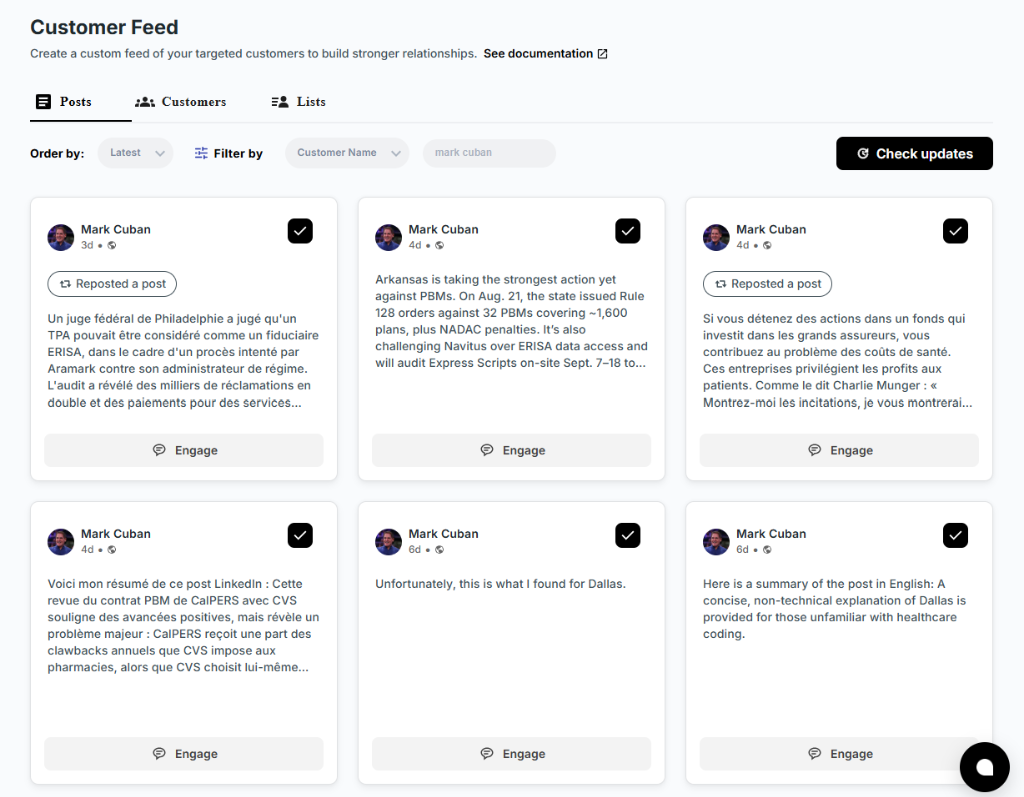
That points to a different design: a separate, curated feed made only of the hiring managers and company accounts you have chosen, kept apart from LinkedIn's general feed.

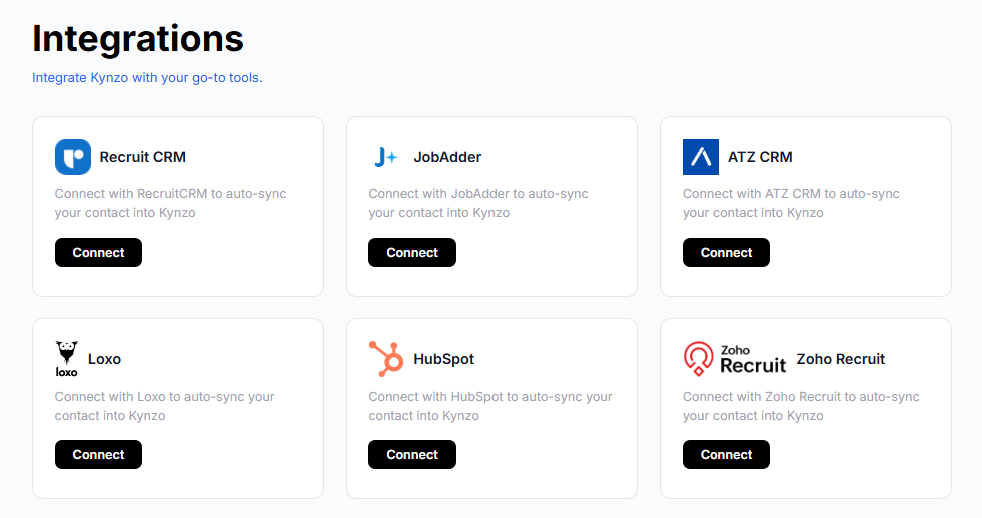
This is what we built Kynzo's Customer Feed for. You can sync target accounts from the recruiting and CRM systems you already use (Recruit CRM, JobAdder, Zoho Recruit, HubSpot, Crelate and Loxo), or save profiles and posts manually through the Chrome extension. Their posts and activity appear in one place, with no ads, no viral noise and no algorithm deciding whether you see them. Our guide to monitoring LinkedIn activity walks through the setup logic, and the Zoho Recruit integration guide shows how CRM sync works in practice.
A simple daily routine with a target feed
- *Morning, 10 minutes. Open the Customer Feed. Scan new posts from hiring managers and client accounts.
- *Pick three. Choose posts where you have something real to add: a market data point, a hiring trend, a question.
- *Comment first, pitch never. Write or review a comment that adds value. Our LinkedIn comment strategy post lays out how we think about this.
- *Watch the signals. A reply to your comment, a profile view or a connection accept is a cue. Our guide to LinkedIn engagement signals explains which ones suggest it is time for warm outreach.
- *Then reach out. By the time you send a message, the contact has seen your name more than once, in a context they chose.
This is the opposite of mass messaging and cold InMail. It is slower per contact, and far warmer.
Comments, pacing and account safety
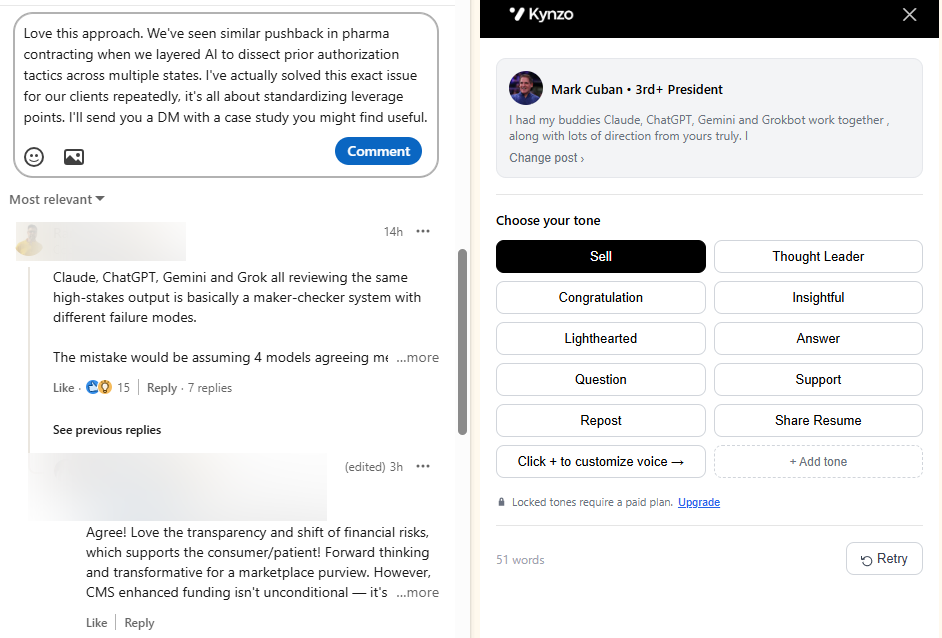
A curated feed only pays off if you act on it consistently. Kynzo's AI Agent drafts or publishes context-aware comments in your own voice, with specialized tones, active hours, daily caps and randomized delays. You choose whether it drafts for your review or publishes. If you want to see the quality first, the free LinkedIn comment generator is a quick test, and our post on AI LinkedIn comments covers where AI helps and where a human should step in.

Be realistic about the rules, too. LinkedIn's policy on third-party tools applies to any extension or automation, including ours, so pace conservatively, keep a human reviewing what goes out and read our guide to LinkedIn rate limits before raising daily caps. We built the pacing controls because volume without judgment is how accounts get flagged and how reputations get damaged.
Native controls versus a target feed
| | LinkedIn's built-in controls | Third-party filter extensions | Kynzo Customer Feed | |---|---|---|---| | Reduces general noise | Yes, gradually | Yes, by hiding categories | Sidesteps the general feed | | Shows only chosen people | No | No | Yes | | Syncs with your CRM | No | No | Yes, six listed systems | | Tracks replies, profile views, connection accepts | No | No | Yes | | Helps you act on a post | No | No | Drafts comments in your voice |
Try the target feed
Kynzo installs free as a Chrome extension, and plans are published on the pricing page : STARTER at $12.90 per month, PRO at $30 per month and ELITE at $50 per month. If you work executive search, our executive search guide shows how to engage senior hiring managers. If your first job is sourcing, the free Boolean search generator is a good place to begin. Learn more at kynzo.io .
FAQ
Is there a filter option in the LinkedIn feed?
Not a true one. LinkedIn lets you sort by Top or Recent, hide posts, unfollow people and companies, and switch off political content in feed preferences. It does not let you filter the feed down to chosen people or post types.
How do I customize my LinkedIn feed?
Unfollow accounts you do not want, use "I don't want to see this" on posts and say whether the problem is the author or the topic, and set your preferred feed view to Most recent. Then keep engaging with content you want more of, since that shapes what you see.
Are LinkedIn feed filter extensions safe to use?
That depends on the extension, and LinkedIn's rules matter here. Its policy says it does not permit browser extensions that modify the appearance of or automate activity on its site. Check the permissions an extension asks for, read the policy, and weigh the risk to an account you rely on for business.
What is the best way for a recruiter to follow hiring managers on LinkedIn?
A dedicated feed of only your target accounts beats the general feed. You can approximate one by following targets and sorting by Recent, but it gets unwieldy past a few dozen. A tool that syncs targets from your CRM into a separate feed, as Kynzo's Customer Feed does, keeps the list current without manual searching.
Sources
- LinkedIn relevance: optimizing the member experience
- Hide content in your feed, LinkedIn Help
- Prohibited software and extensions, LinkedIn Help
- LinkedIn updates its Feed algorithm, Social Media Today
- Posts API, Microsoft Learn
- Perform Posts Search, Unipile
- How to Take Control of Your LinkedIn Feed, Nigel Cliffe
- How to Customize Your LinkedIn Feed
- LinkedIn Feed Explained, Draftly
- How to Hide the LinkedIn Feed on iPhone, Snowscroll