

Zoho Recruit LinkedIn Integration: Pick a Setup, Track Engagement
! Sketched integration motifs frame the title
Zoho Recruit connects with LinkedIn through four distinct integrations: Apply with LinkedIn for Easy Apply capture, LinkedIn Apply Connect for deeper applicant insights, LinkedIn RSC and RSC+ for bidirectional sourcing sync, and Premium job posting for wider job visibility. Pick Apply with LinkedIn for frictionless applications, Apply Connect when you hold a LinkedIn Recruiter seat and want applicant highlights, RSC or RSC+ when your team sources inside LinkedIn Recruiter, and Premium posting when you need expanded reach. Most of these require admin access on both platforms and, for RSC, a Corporate or RPS seat.
***
TL;DR:
>
- Apply Connect’s applicant insights require a LinkedIn Recruiter Corporate or RPS seat, while RSC and RSC+ also require administrator access on both platforms.
- LinkedIn Recruiter seats can export up to 300 profiles monthly, but candidates who opt out of off platform sharing cannot be exported.
- After the initial bulk transfer, incremental syncs run about every 15 minutes; match each LinkedIn seat to exactly one Zoho Recruit user by email.
- Roll out Apply Connect first for application volume, add RSC when sourcers work in LinkedIn Recruiter, and reserve RSC+ for teams using Hiring Assistant.
- RSC+ displays Hiring Assistant ratings and comments as read only reviews, so recruiters can use them for screening but cannot edit them in Zoho Recruit.
***
Table of Contents
- Overview: what Apply with LinkedIn, Apply Connect, RSC, and RSC+ do
- What syncs, what's read-only, and the operational caps to plan around
- How to activate Apply Connect, RSC/RSC+, and Premium job posting
- Troubleshooting common configuration pitfalls
- Combining integrations into one recruiting workflow
- Prioritizing integrations for your team
- Kynzo: tracking LinkedIn engagement alongside your Zoho Recruit sync
- FAQ
- Sources
Overview: what Apply with LinkedIn, Apply Connect, RSC, and RSC+ do
Each integration solves a different hiring problem, and recruiting teams typically end up running more than one at once.
Apply with LinkedIn, also called Quick Apply, auto-fills a candidate's LinkedIn profile details straight into your Zoho Recruit application form, cutting the steps between "interested" and "applied." Apply Connect builds on that by letting candidates use Easy Apply without leaving LinkedIn at all, and it adds Applicant Highlights and Applicant Notifications inside Recruit, though those two features are reserved for LinkedIn Recruiter users on a Corporate or RPS subscription.
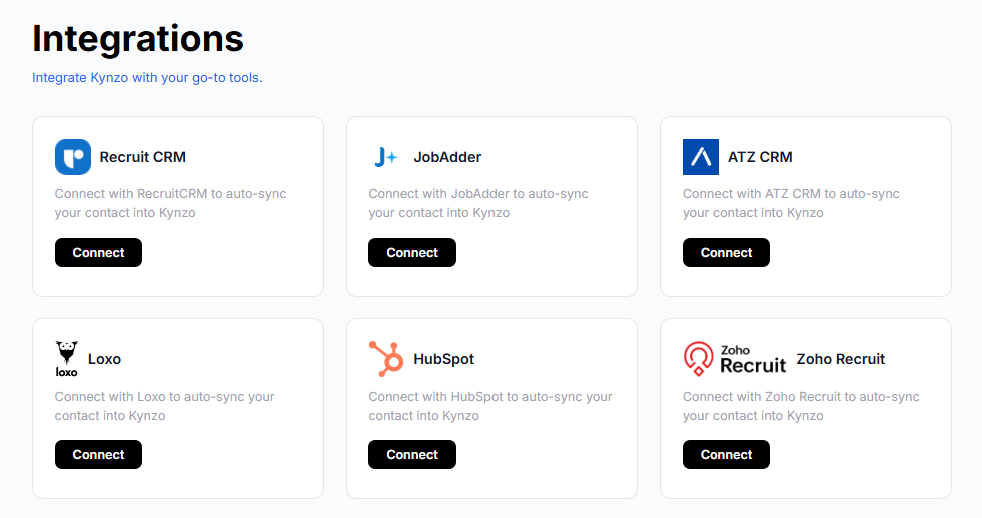
LinkedIn RSC (Recruiter System Connect) runs the sourcing side of the relationship. It syncs job openings, pipeline stages, candidates, notes, and interview feedback between LinkedIn Recruiter and Zoho Recruit in both directions. RSC+ extends that by linking your Recruit job requisitions to LinkedIn Hiring Projects and importing Hiring Assistant evaluations as read-only reviews.
Premium job posting differs from Basic mainly in visibility and job slot allocation:
- Apply with LinkedIn: auto-fills applications, works for any Zoho Recruit user.
- Apply Connect: adds Easy Apply plus applicant insights, Recruiter seat required for the extras.
- RSC/RSC+: two-way sync of candidates and jobs, RSC+ layers in AI evaluation data.
- Premium posting: broader visibility, tied to job slot allowance rather than a flat per-post fee.
What syncs, what's read-only, and the operational caps to plan around
Before you activate anything, it helps to know exactly what moves between systems and where the hard limits sit.
The 1-click export pulls candidate name, email, phone number, current employer, and resume directly into Zoho Recruit from a LinkedIn Recruiter search. That convenience comes with a ceiling: each LinkedIn Recruiter seat can export up to 300 candidate profiles per month, a cap worth tracking if your team runs high-volume sourcing sprints.
The LinkedIn profile widget embedded inside candidate records shows a live view of that person's LinkedIn profile along with any InMail history exchanged through Recruiter, so your consultants can see context without switching tabs. Once RSC+ is active, Hiring Assistant evaluations land as star ratings and comments inside the Reviews submodule. These are read-only: Recruit displays the assessment, but the evaluation itself happens on LinkedIn's side.
A few operational notes to build into your rollout plan:
- Initial sync transfers jobs, pipeline stages, candidates, notes, applications, resumes, and interview feedback in that order.
- After the first bulk transfer, incremental syncs run roughly every 15 minutes.
- Sync logs are retained so your admin can trace failures without re-running the whole batch.
- The profile widget does not render on Safari; use Chrome or Firefox instead.
How to activate Apply Connect, RSC/RSC+, and Premium job posting
Getting each integration live is mostly a matter of sequence and permissions, so follow this order to avoid the most common activation delays.
- Confirm you have admin privileges in both Zoho Recruit and LinkedIn Recruiter before starting; neither integration can be configured from a standard user account.
- Locate your LinkedIn contract ID inside the LinkedIn Recruiter admin interface. You'll need it when linking accounts in Zoho Recruit.
- In Zoho Recruit, go to Setup > Job Boards Hub > Quick Apply to toggle on Apply with LinkedIn and Apply Connect.
- For staffing agency accounts, enable Automated Job Posting first, then wait 24 hours before switching on automated posting through Apply Connect.
- Navigate to Setup > Marketplace > LinkedIn to connect RSC, and request RSC+ if your contract supports Hiring Assistant evaluations.
- Map each LinkedIn Recruiter seat to exactly one Zoho Recruit user by matching email addresses; this 1:1 mapping is required for the sync to attribute records correctly.
- Initiate the first sync and let the bulk transfer complete before testing anything live.
- Check the Sync Reports tab for failed records and review the "Reason" column to identify what needs fixing.
- Publish a test job, submit an application through Easy Apply yourself, and confirm the candidate record appears in the Candidates module within the usual sync window.
Pro Tip: Run your test job as unpublished or internal-only first, so a stray test application doesn't show up in a live candidate pool.
Troubleshooting common configuration pitfalls
Most activation problems trace back to a handful of recurring issues, and they're usually quick to resolve once you know where to look.
- If candidates aren't flowing through, check seatholder mapping first: a mismatched email address between LinkedIn and Recruit breaks the sync silently.
- When staff change roles or leave, remap their seat promptly rather than leaving an orphaned connection.
- If RSC doesn't appear as an option at all, your LinkedIn contract may not have it enabled; contact your LinkedIn account manager to request activation.
- Use the Sync Reports tab to resync failed records in bulk instead of fixing them one by one.
- If the profile widget won't load, check that you're on Chrome or Firefox and that cookies and trackers aren't blocked for the domain.
- Candidates who have opted out of off-platform data sharing cannot be exported through the 1-click export, by design.
Combining integrations into one recruiting workflow
The real value shows up when these integrations work together rather than in isolation. A practical sequence: publish the role from Zoho Recruit, enable Apply Connect so candidates apply through Easy Apply without friction, then source actively inside LinkedIn Recruiter and export promising profiles back into Recruit for screening.
! Recruiting workflow across Zoho and LinkedIn
If RSC+ is active, filter your Reviews sub-module for source "LinkedIn Hiring Assistant" to use those evaluations as an early screening signal alongside your own notes. To avoid duplicate candidate records, lean on email and phone matching and check Sync Reports right after the initial sync completes.
Many teams layer in a LinkedIn-focused engagement tool at this stage, since Recruit and LinkedIn Recruiter sync candidate data but don't track ongoing relationship signals like comment replies or profile views on your target hiring managers.
Prioritizing integrations for your team
If you're rolling this out in stages, start with Apply Connect. Reducing drop-off on volume roles pays off faster than any sourcing feature, since every redirect away from LinkedIn costs you applicants. Add RSC once your sourcers are actively working inside LinkedIn Recruiter, and reserve RSC+ for teams that already lean on Hiring Assistant and want that signal inside the ATS rather than in a separate tab. For agency recruiters juggling multiple client searches, that order protects candidate volume first and sourcing depth second.
— Jenny
Kynzo: tracking LinkedIn engagement alongside your Zoho Recruit sync
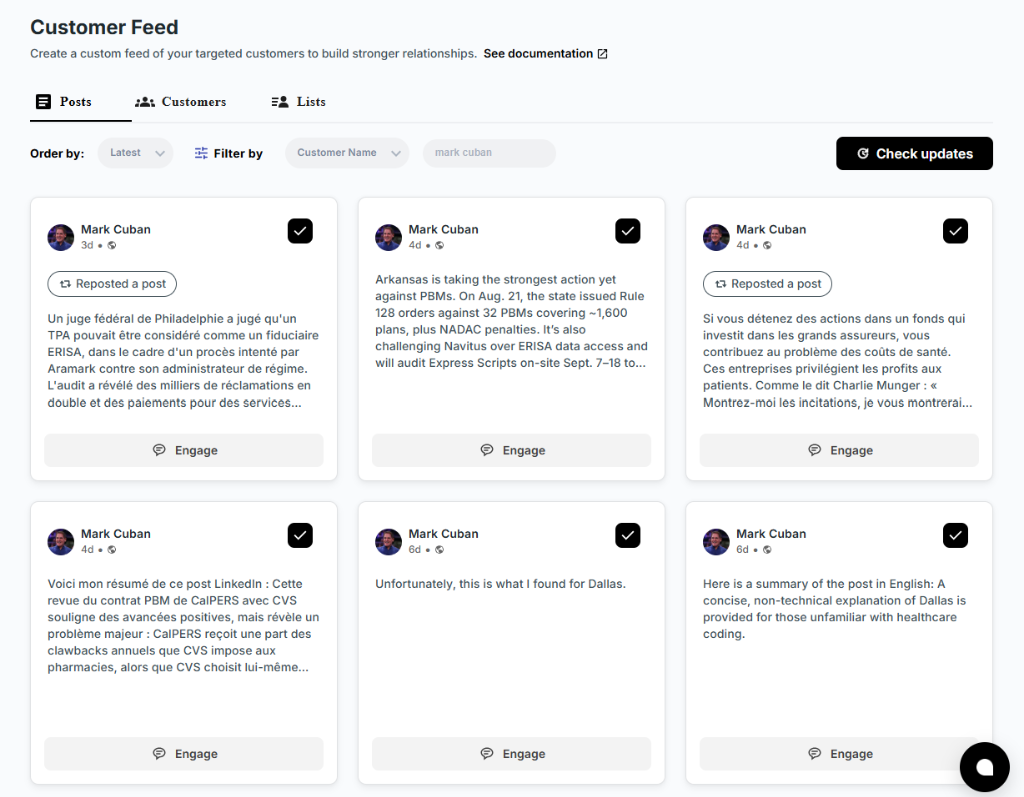
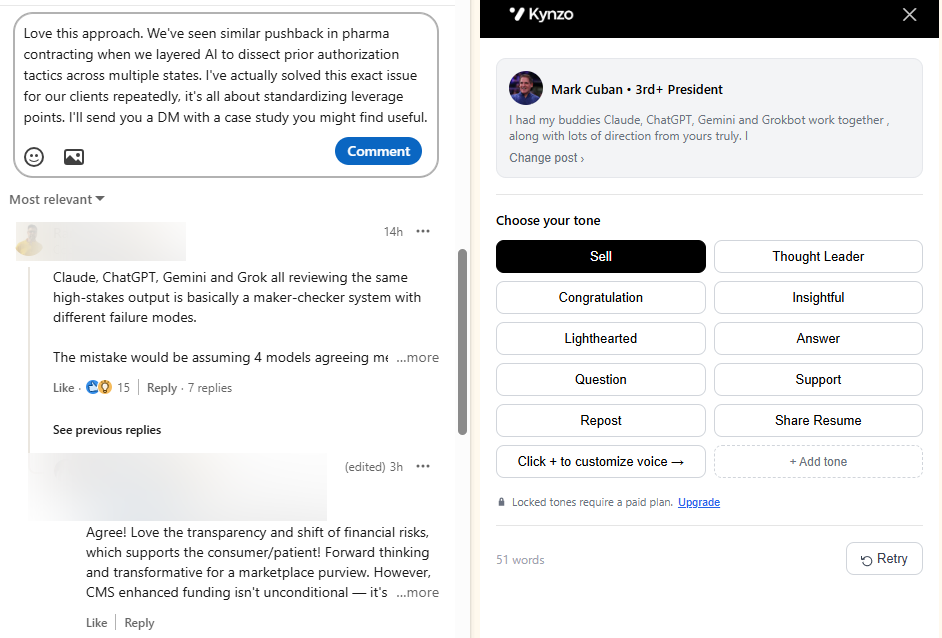
Zoho Recruit's LinkedIn integrations move candidate and job data between systems, but they don't track what happens when a hiring manager replies to your comment or views your profile. That's where Kynzo fits: it syncs with Zoho Recruit, tracks engagement signals like replies, profile views, and connection accepts in a dedicated feed, and uses an AI agent to draft context-aware comments in your own voice.
! Kynzo
- Our AI comment generator helps you stay visible with target hiring managers without resorting to mass messaging.
- Our Boolean search tool supports sourcing before you ever export a profile into Recruit.
- Plans start at our STARTER tier for recruiters who want engagement tracking paired with their existing CRM.
If you're already syncing LinkedIn Recruiter data into Zoho Recruit, pairing that pipeline with a tool built for warm outreach timing is a natural next step. Check our pricing plans to see which tier fits your team.
FAQ
What's the difference between Apply with LinkedIn and Apply Connect?
Apply with LinkedIn auto-fills a candidate's profile details into your application form, available to any Zoho Recruit user. Apply Connect goes further by enabling full Easy Apply inside LinkedIn and adding Applicant Highlights and notifications, though those extras require a LinkedIn Recruiter Corporate or RPS seat.
Do I need a specific LinkedIn seat type for RSC+?
Yes, RSC and RSC+ require a LinkedIn Recruiter Corporate or RPS seat along with admin access on both the LinkedIn and Zoho Recruit sides. Lite or Basic LinkedIn plans don't support this connection.
How many candidates can I export from LinkedIn Recruiter to Zoho Recruit?
Each LinkedIn Recruiter seat can export up to 300 candidate profiles per month through the 1-click export feature. Teams running high-volume sourcing should track usage across seats to avoid hitting that limit mid-month.
Are LinkedIn Hiring Assistant evaluations editable inside Zoho Recruit?
No, Hiring Assistant evaluations appear as read-only star ratings and comments in the Reviews sub-module once RSC+ is active. They're a screening input you can view alongside your own notes, not a field you can change from Recruit.
Why can't I see the LinkedIn profile widget in candidate records?
The widget is incompatible with Safari, so switching to Chrome or Firefox usually resolves the issue. Blocked cookies or tracker-blocking extensions can also prevent it from loading.